Add URL Macros to Your Ads
URL macros help advertisers append tracking parameters to website URLs, so they can better understand which campaigns, ad sets, or ads are driving traffic and conversions.
Follow these steps to add URL Macros to your ads:
1. Log in to Ads Manager. Then click the menu in the top corner and select Create Ads.
2. Then input your campaign and ad set details.
3. Select your ad type. URL macros can be used for the following ad types with a website or Deep Link attachment:
-
Single Image or Video
-
Story Ad
-
Collection Ad
-
Commercial
-
AR Ads
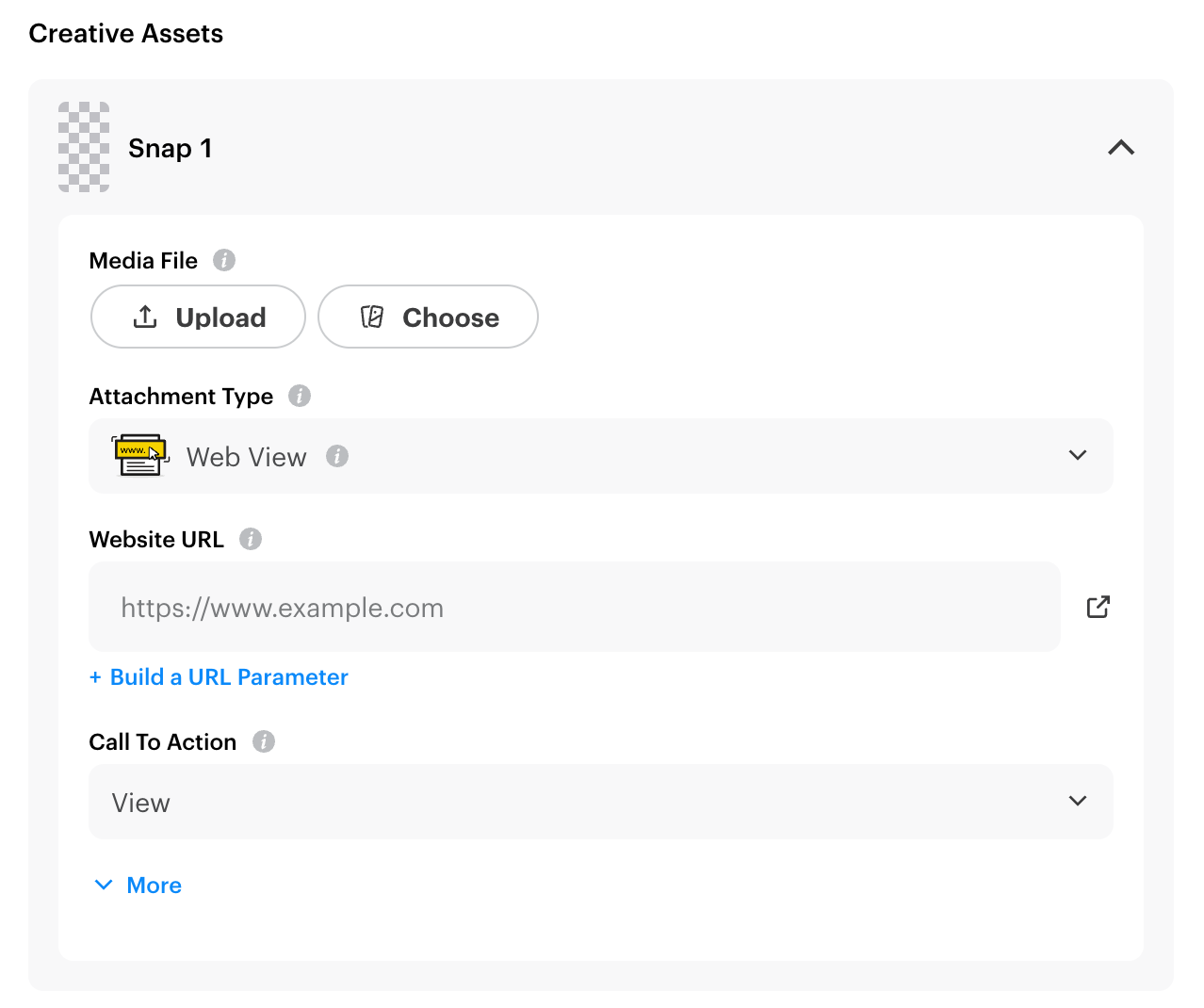
4. Input your ad info and click Build a URL Parameter.
5. In the modal, you have the option to create your custom parameter keys and/or use the following default parameter keys:
-
Campaign Source
-
Campaign ID
-
Campaign Content
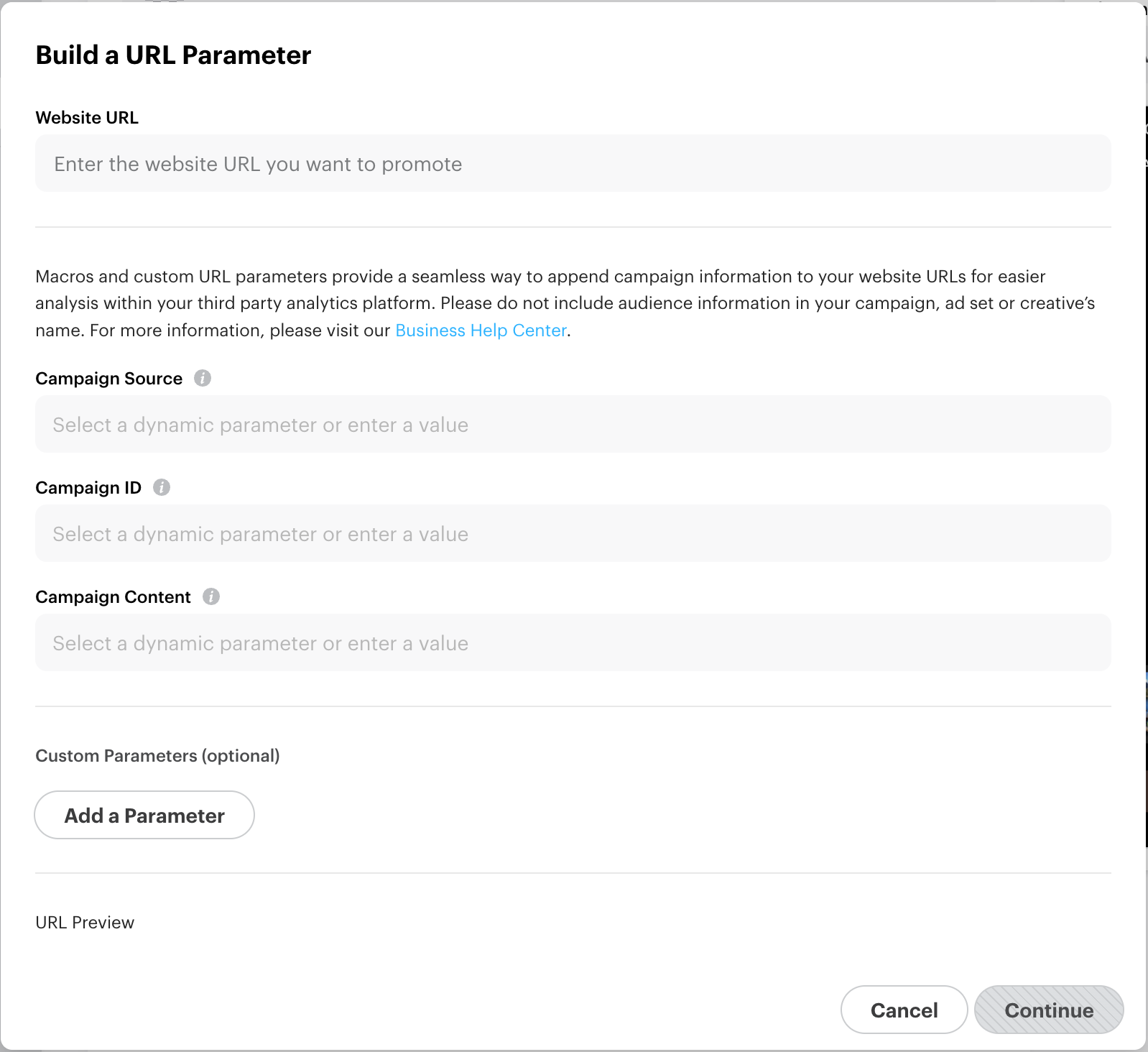
Please Note: If you leave the default parameter keys empty, we will not append them to your website URL. However, if you create your custom parameter key, it’s important to make sure it is not empty.
When assigning a parameter value to a key, you have the option to set a static value and/or choose from the following dynamic macros:
-
Campaign Name {{campaign.name}}*
-
Campaign ID {{campaign.id}}*
-
Ad Set Name {{adSet.name }}*
-
Ad Set ID {{adSet.id}}*
-
Creative Name {{creative.name }}
-
Ad ID {{ad.id}}*
-
Creative Headline {{creative.headline}}
-
Site Source Name {{site_source_name}}
-
*Available for use with Dynamic Ads campaigns.
Please Note: If you choose to manually add dynamic macros, please use the formatting listed above including the curly braces. For security purposes, please do not include audience information in your campaign, ad set, or creative's name.
6. Review your macros in the preview to ensure they’re working properly.
-
Important: If you use URL macros in conjunction with other third-party tracking services, such as Doubleclick and Taboola, etc., be sure that the correct encoding requirements and macro placements are met. At Snapchat, we encode all special characters in the macros and append them in the order, as shown in the 'Preview Link' section.
-
For example: yoursite.com?utm_campaign=Yee Ha becomes yoursite.com?utm_campaign=Yee%20Ha. So, if you leverage other tracking services, please make sure to review your final website url in the ‘Preview Link’ section and ensure that it is compatible with the tracking services you use.
7. Click Continue and submit your ad for review.
Please Note: Shopify advertisers using the Snapchat Ads App for Shopify will have their "snap_campaign_id" URL parameter set to a default, unique identifier for web view and deep link ads. This is to ensure proper attribution in the Shopify Admin Dashboard. The "snap_campaign_id" URL parameter cannot be overwritten by the Snapchat URL Macros builder or with url_macro_parameters.
Using URL macros with Dynamic Product Ads
Best Practices for DPA
For Dynamic Product Ads (DPA), URL macros can help advertisers keep tracking consistent across campaigns without manually editing every product link. Follow these best practices:
-
Use URL macros when you need campaign-specific or ad-specific tracking
-
Keep naming conventions consistent and aligned with your Ads Manager naming
-
Use lowercase values and avoid spaces
-
Keep parameter strings concise to avoid very long URLs
-
UTMs need to be in the URL parameter/builder section as well as the website URL section for Multi-Segment DPA ads.
Learn More: