To create an ad account:
1. Log in to Ads Manager. Then click the navigation in the top corner and select Ad Accounts.
2. Click + New Ad Account. Then Input your advertiser details:
-
Select whether or not you’re an agency buying ads on behalf of an advertiser.
-
Select whether or not your ad account will run housing, credit, or employment ads.
-
Please Note: If you select ‘Yes’, your ad may be rejected if it uses targeting parameters that could include age, gender, or postal code level targeting. Minimum age targeting may be applied to up to 21 years of age.
-
Select whether you will use the ad account for political ads. If you're running a political ad, input the sponsoring political organization or advocacy group who is paying for the ad in the ‘Paying Advertiser’ field.
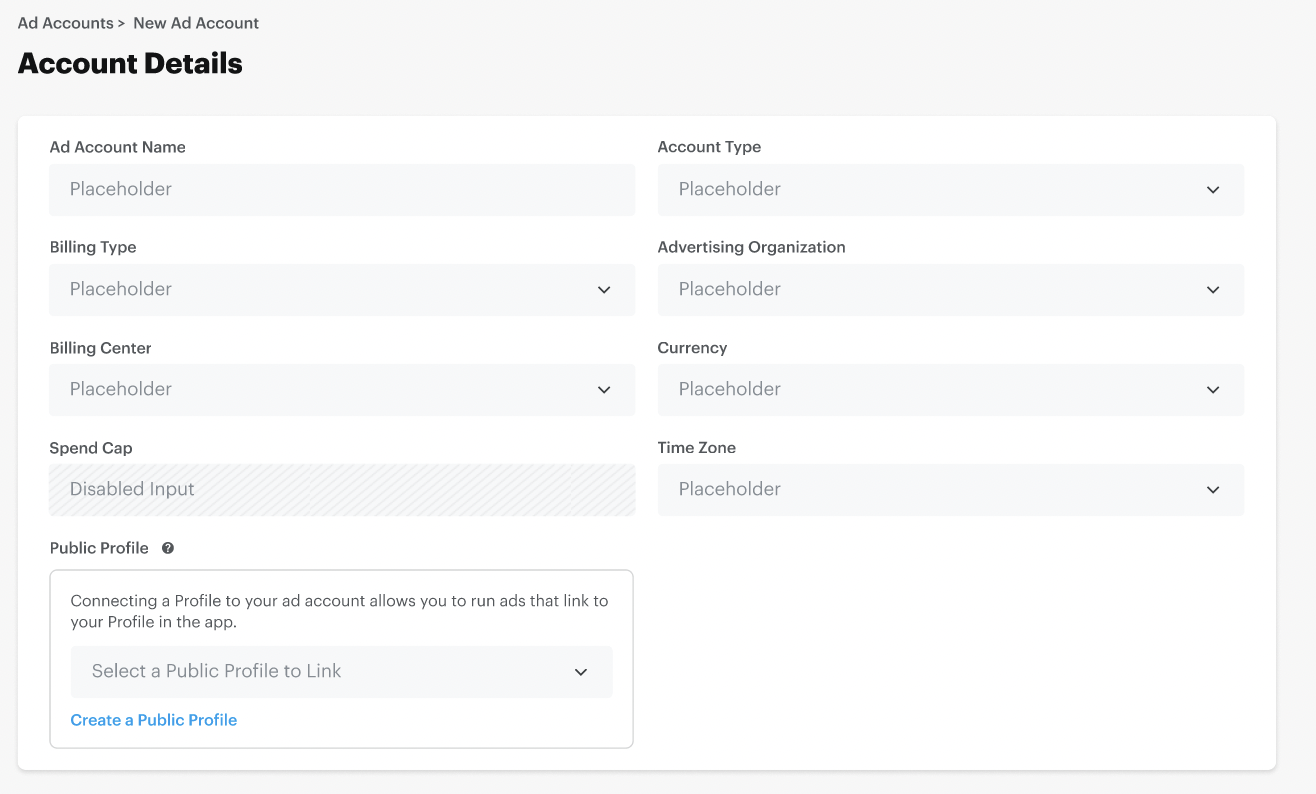
3. Click Account Details and fill out your ad account info:
|
Name
|
Your ad account name
|
|
Billing Type
|
If you'd like to continually have access to your funding source, choose 'Revolving.' This allows you to replenish your line of credit, and it is often chosen to run ads in Ads Manager. If you'd prefer to run a onetime campaign with a spend cap, you can choose 'Insertion Order.'
Please Note: If you create an account with an Insertion order, but want to set a spend cap later, you can leave the spend cap at $0. This way the account will have a spend limit of $0, but you can apply one later.
|
|
Advertising Organization
|
The organization buying ads
|
|
Billing Center
|
Choose the billing center that you would like to receive invoices. You can use the one automatically created when you first claimed your business or add another Billing Center by following the steps here.
|
|
Currency
|
Choose your currency
|
|
Spend Cap
|
If you chose ‘Insertion Order’ as your billing type, input an ad account budget
|
|
Time Zone
|
Select your time zone
|
|
Public Profile
|
Either click the dropdown to select a Public Profile to link to this new ad account
or
If you have not yet set up a Public Profile, click Create a Public Profile, and complete the steps to create a new Public Profile username or sign in with an existing one.
Please Note: Public Profiles are required for advertising.
|
Please Note: You cannot create a new ad account without selecting or configuring a Public Profile. The following cannot be changed after you've created an ad account:
-
Account Type
-
Billing Type
-
Currency
-
Time Zone
Please create a new ad account if you’d like to use a different account type, billing type, currency, or time zone.
4. Click Create Account. Your ad account will be created, and you can find it in the Ad Accounts portion of Ads Manager. To begin launching ads, you’ll want to input a payment method. You can also add members to your ad account.
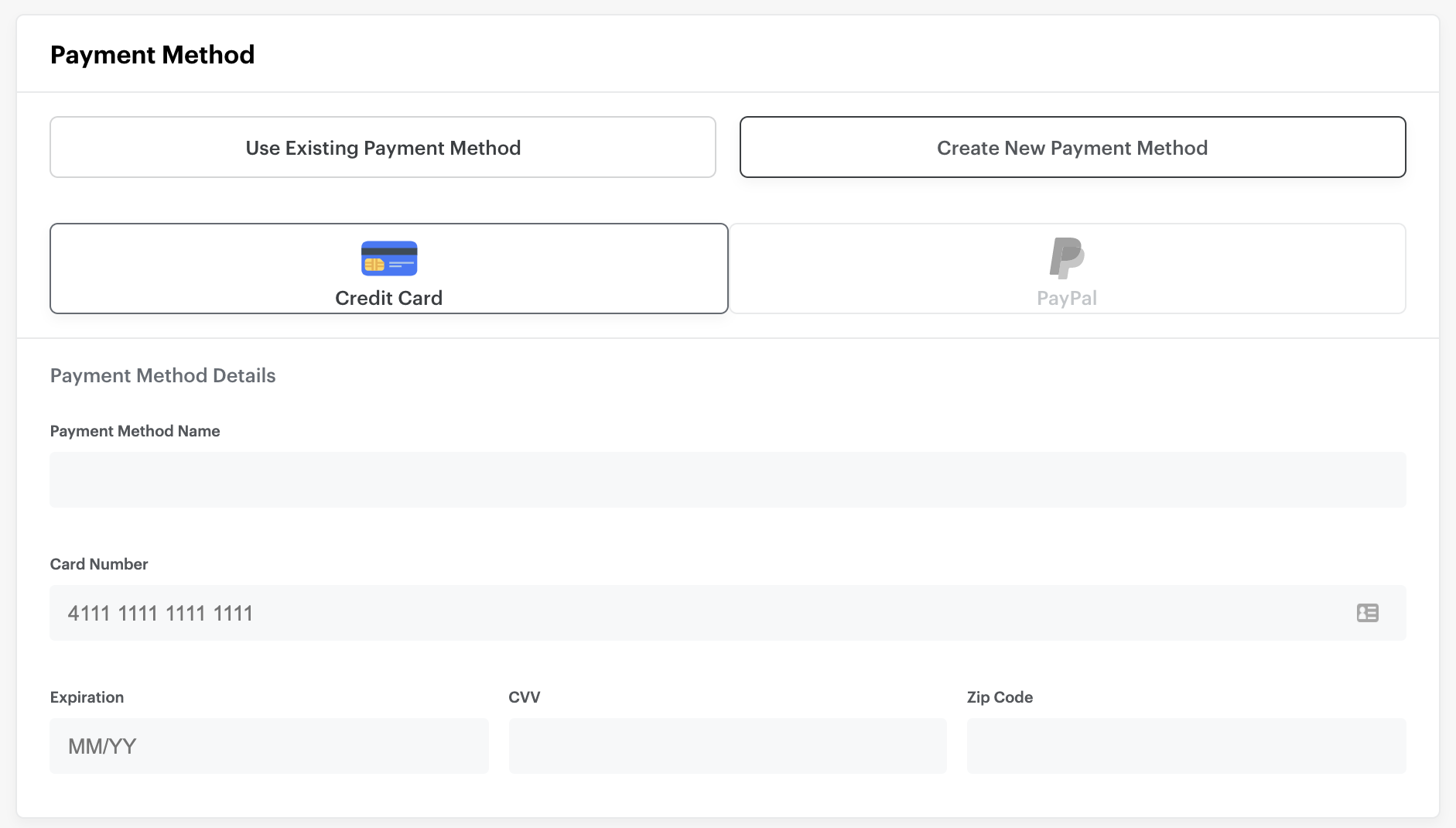
5. Select whether you’d like to use an existing payment or create a new one. Then click Save Payment Method. You can follow the steps outlined here to apply for a line of credit.
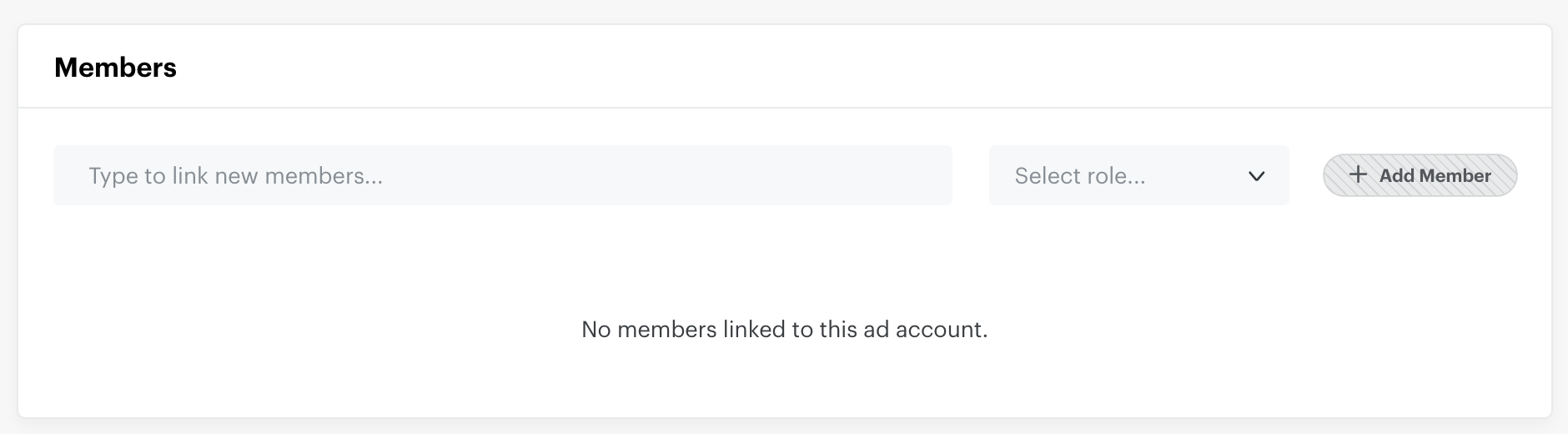
6. Select any members you’ve invited to your business to add to the ad account. Learn more about the roles and permissions that can be assigned here . Members added will then be able to log in to Ads Manager and access this ad account. When you’re done, save your members.
7. Once you have created an ad account, you can log in to Ads Manager to launch ads.