Product Catalogs contain all the relevant product information for items sold on your website, such as product title, id, image, links, and much more. This information can be used to advertise on Snapchat across a variety of formats, including manual Product Catalog Ads and Dynamic Ads. If you are an Organization Admin, you can create a Product Catalog via manual upload or data feed sync, and move forward with campaigns showcasing the products, services, or experiences you sell online.
Getting Started
As a prerequisite, ensure that you have established a business account and an ad account with Snapchat by going to ads.snapchat.com.
Creating your Catalog
There are two ways to create a catalog at this time: (1) manual upload of a CSV or (2) data feed ingestion. Prior to creating your catalog, make sure that the catalog file or feed includes all the required fields and is formatted properly to avoid any errors upon upload.
Please Note: While you can use catalog files or data feeds that you are currently using on other platforms, make sure that they adhere to Snapchat’s specifications.
Learn more about Snapchat Catalog formatting and specifications for Ecommerce, Hotels, and Flights.
To create a Product Catalog:
1. Log in to Ads Manager.
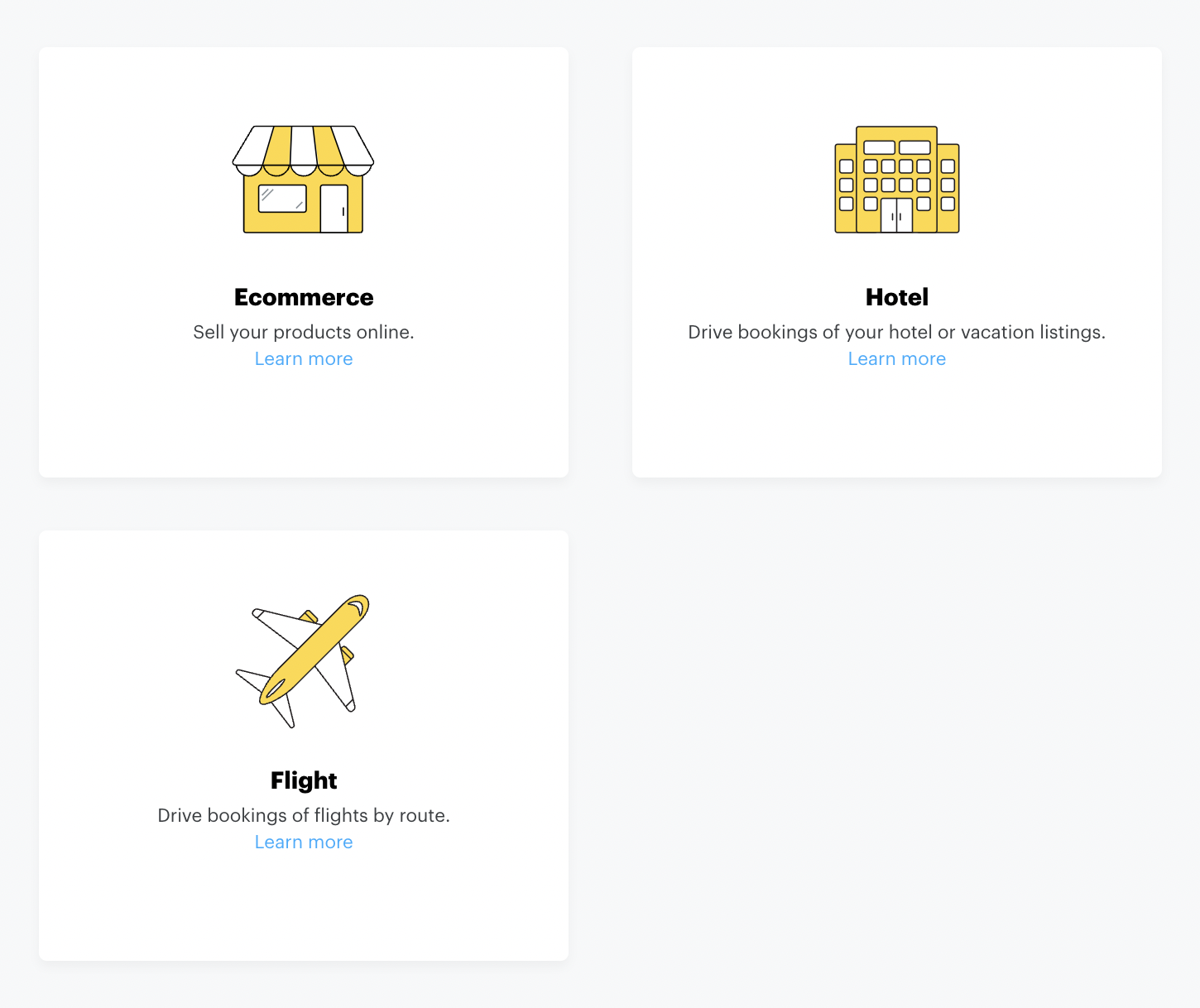
2. Click the menu in the top left corner and select Catalogs. You will see three options: Ecommerce, Hotel, or Flight. Select the type of catalog you would like to upload based on your business type. (Learn more about Dynamic Ads for Travel).
3. Once you click into your catalog type, you can Manually Add Products or Use Product Feed.
4. Choose between these two options:
5. Complete the steps provided for the options above.
Learn More: