Add URL Macros and Custom Parameters to Dynamic Ads
There are two ways to append URL Macros and Custom Parameters to your Dynamic Ads campaigns:
-
Attach them within your Catalog directly following these steps
-
Use the URL Parameter builder within Ads Manager
-
- campaign.name - send the associated campaign name in the product link
- adSet.name - send the associated ad set name in the product link
- campaign.id - send the associated campaign ID in the product link
- adSet.id - send the associated ad set ID in the product link
- ad.id - send the associated ad ID in the product link
To add URL Macros and Custom Parameters to Dynamic Ads in Ads Manager:
-
Log in to Ads Manager. Then click the menu in the top left corner and select Create Ads.
-
Input your campaign and ad set details.
-
Similar to other URL Macros and Parameters, the URL Parameter builder is available at the ad level with the following Dynamic Ads formats:
-
Single Image or Video
-
Collection Ad
-
Story Ad
-
Input your ad info, including your attachment type, and then click Build a URL Parameter. Here you can create your custom parameter keys and/or use the following default parameter keys:
-
{{campaign.name}}
-
{{adSet.name}}
-
{{campaign.id}}
-
{{adSet.id}}
-
{{ad.id}}
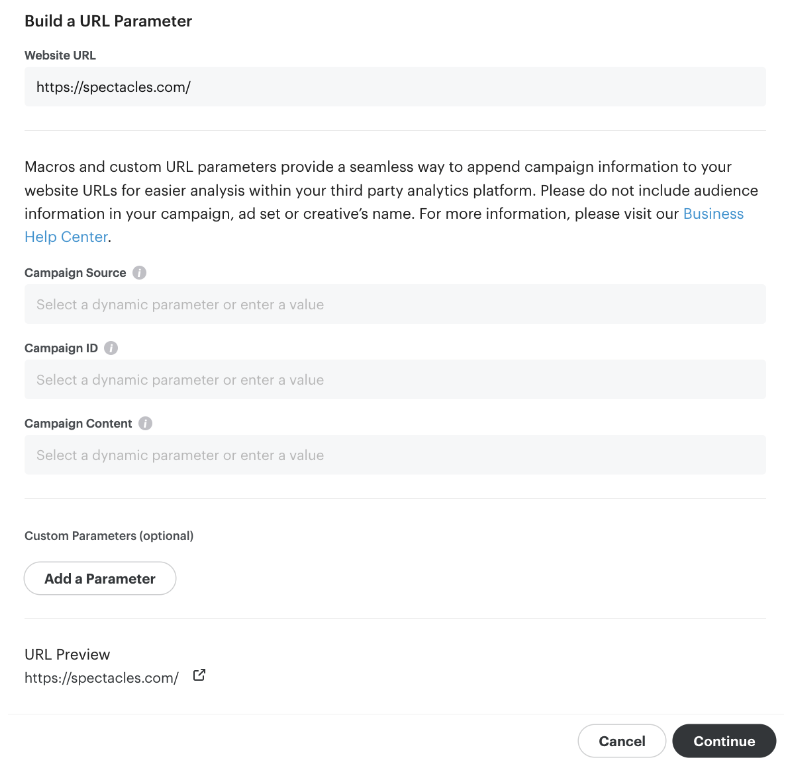
You also have the option of inputting a custom parameter to be appended to the end of the URL. To do this, click Add a Parameter under "Custom Parameters (optional)" panel. You can put in one or multiple Custom Parameters.
Please Note: Shopify advertisers using the Snapchat Ads App for Shopify will have their "snap_campaign_id" URL parameter set to a default, unique identifier for web view and deep link ads. This is to ensure proper attribution in the Shopify Admin Dashboard. The "snap_campaign_id" URL parameter cannot be overwritten by the Snapchat URL Macros builder or with url_macro_parameters.