Once a campaign, ad set, or ad is published and delivering, you can make adjustments without having to rebuild a new one. You can edit your audience, bid, budget, placements, and creatives.
To edit a campaign, ad set, or ad:
-
Log in to Ads Manager.
-
Click the menu in the top corner and select Manage Ads.
-
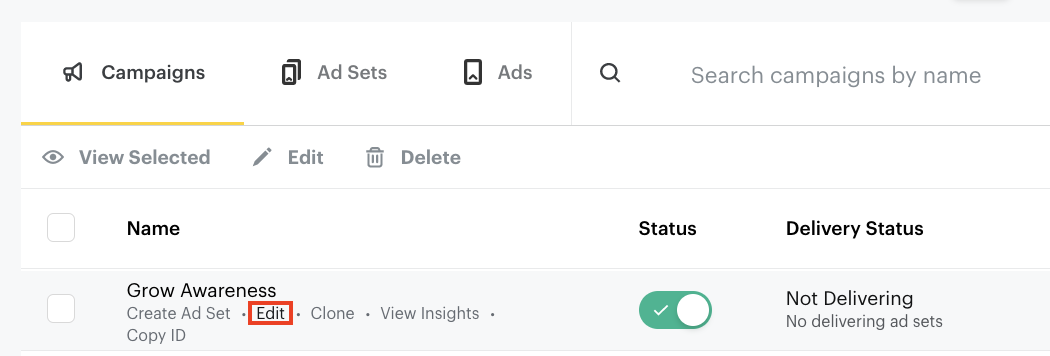
Click Edit under the name of the campaign, ad set, or ad you’d like to edit.
-
Make adjustments to your campaign, ad set, or ad and click Save & Close.
You can edit the following in campaigns:
-
Campaign name
-
Status
-
Start and end times
-
Daily spend cap
-
Lifetime spend cap
Please Note: Your campaign objective is not editable. You cannot edit or change the goal on ad set level.
You can edit the following in ad sets:
|
Ad set details
|
-
Ad set name
-
Snap Pixel (on or off)
-
Placement
|
|
Location
|
-
You are able to edit a country as well as edit the locations (city, state, DMA, etc.) within a country.
|
|
Demographics
|
-
Age
-
Gender
-
Languages
-
Advanced demographics
-
Regulated content
|
|
Audiences
|
-
Predefined Audiences
-
Custom Audiences
|
|
Devices
|
-
Operating systems
-
Device makes
-
Connection type
-
Carriers
|
|
Delivery
|
-
Status
-
Daily budget
-
Start and end times
-
Bid
-
Frequency cap
-
Pacing type
|
You can edit the following in ads:
-
Ad name
-
Status
-
Impression tags
You can edit the following in creatives:
-
Creative name
-
Brand name
-
Public Profile
-
Headline
Please Note: Once the ad is associated with spend, which means that it's delivering, then Top Snap Media cannot be edited or changed. Also, editing or changing creatives before the start date may trigger ads to go back into the review process.