Invite a Member to an Organization
Depending on your role, you can invite members to your organization. Members must be added to the organization before they can be assigned access to individual ad accounts.
When you invite a member, they’ll receive an email invitation with a unique link to join the organization.
Important: The email address used for the invitation must match the email address on the member’s Snapchat account.
To avoid access issues, we strongly recommend that all members use a Snapchat account created with their work email, rather than a personal email address.
If the invited member doesn’t yet have a Snapchat account, they’ll be prompted to create one using the same email address that received the invitation.
To invite a member to your organization:
- Log in to Ads Manager.
- Click the menu in the top-left corner and select Members.
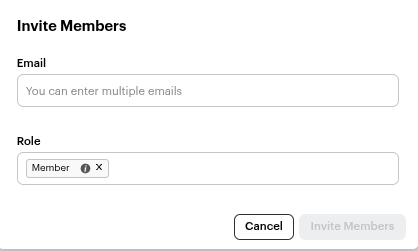
- Click + Invite Member, then enter the member details:
- Email(s): Add one or more work email addresses to invite multiple members at once.
- Role: Assign a role – Organization Admin, Business Admin, or Member.
- Click Invite Member.
- Assign Assets: After sending the invitation, you’ll be prompted to assign assets (such as ad accounts) to the newly invited member(s) with certain access levels.
Once the member accepts the invitation by clicking Join in the email, they’ll be added to your organization. You can then assign them access to specific ad accounts as needed.
Depending on their role, members can view and manage ad accounts within the organization.
Learn More: